
创建Vuepress网站
创建Vuepress网站
创建简单网站
根据快速上手 | VuePress创建项目
# 新建一个目录,然后进入此目录
mkdir xgxgc-manual
cd xgxgc-manual

# 初始化git
git init

# 生成package.json
npm init -y

# 安装 vuepress
npm install -D vuepress@next
# 安装打包工具和主题
npm install -D @vuepress/bundler-vite@next @vuepress/theme-default@next

# 创建 docs 目录和 docs/.vuepress 目录
mkdir docs
mkdir docs/.vuepress
在docs/.vuepress下创建一个config.js文件,内容为
import { viteBundler } from '@vuepress/bundler-vite'
import { defaultTheme } from '@vuepress/theme-default'
import { defineUserConfig } from 'vuepress'

export default defineUserConfig({
  bundler: viteBundler(),
  theme: defaultTheme(),
})
创建一个首页
lijun@DESKTOP-FIEG1I3 MINGW64 /d/dev/xgxgc-manual (master)
$ echo '# 111 hi,Vuepress' > docs/README.md
创建.gitignore文件
# Dependencies
node_modules/

# VuePress 默认临时文件目录
.vuepress/.temp
# VuePress 默认缓存目录
.vuepress/.cache
# VuePress 默认构建生成的静态文件目录
.vuepress/dist
在package.json中增加
{
  "scripts": {
    "docs:dev": "vuepress dev docs",
    "docs:build": "vuepress build docs"
  }
}
然后运行
npm run docs:dev很明显这个帮助文档有点过时,因为出错了
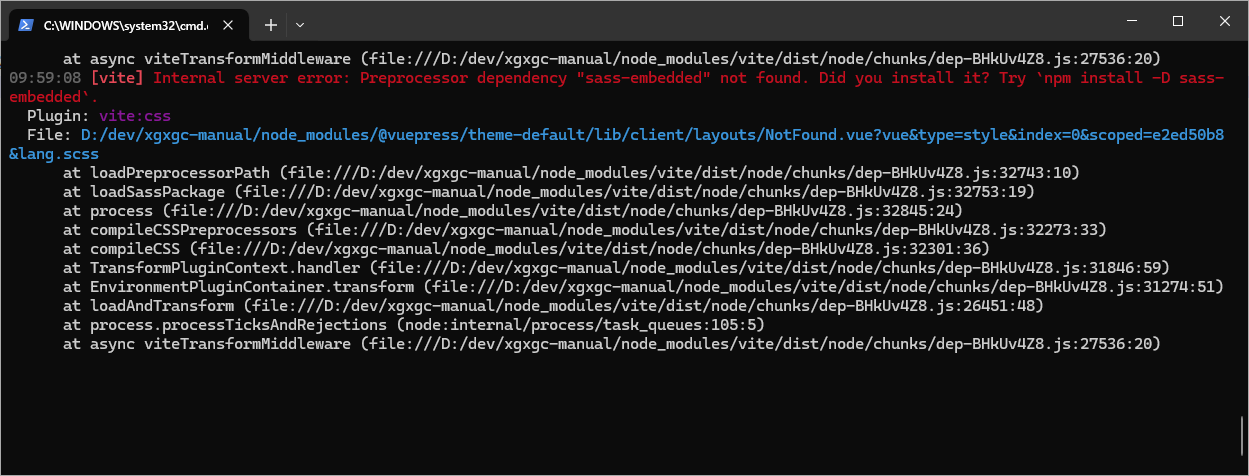
那就安装一下,先按Ctrl+C退出,然后安装
PS D:\dev\xgxgc-manual> npm install -D sass-embedded

added 20 packages in 11s

107 packages are looking for funding
run `npm fund` for details完成后再运行npm run docs:dev启动网站:
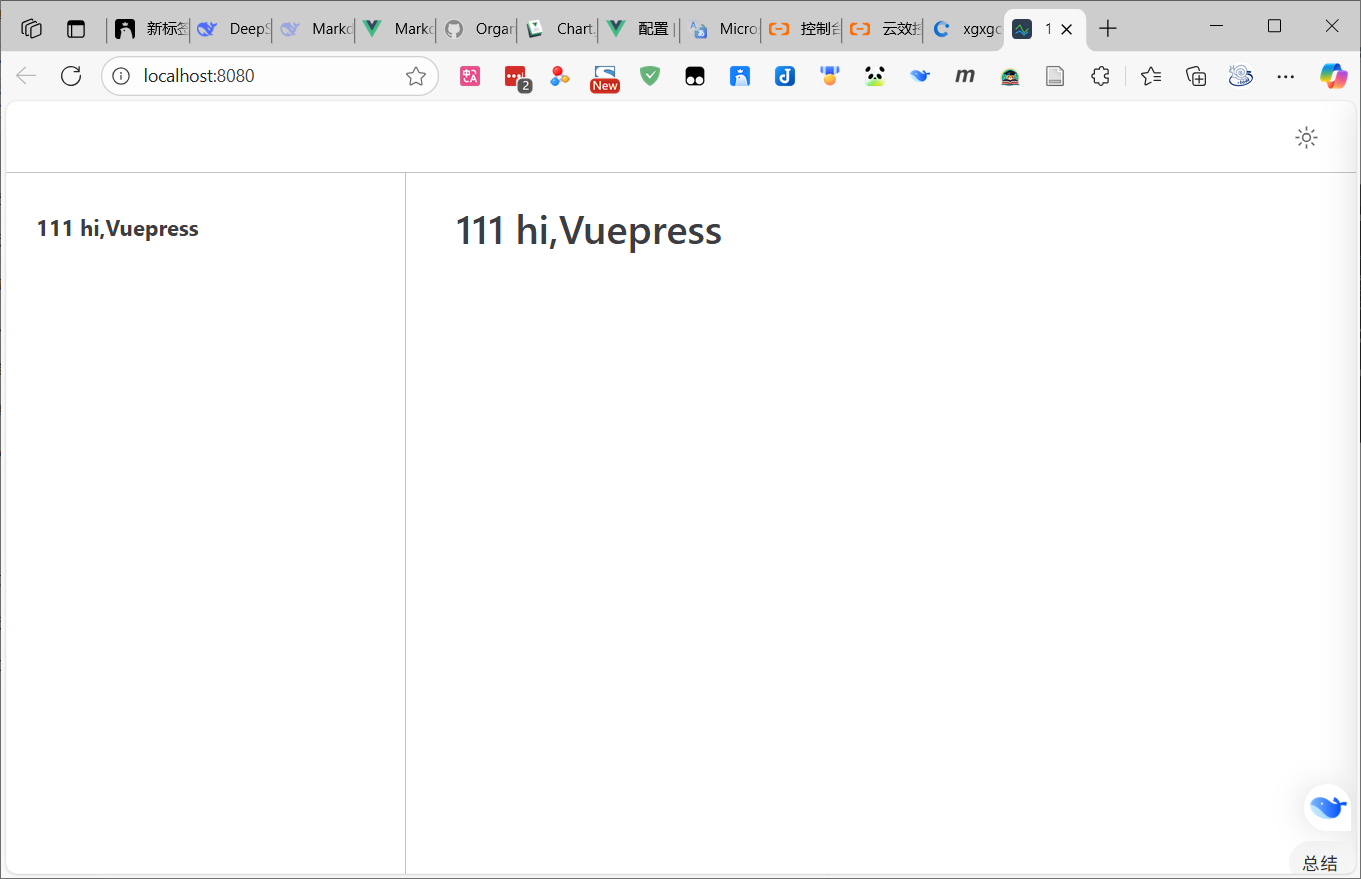
可以用了,但是外观非常简陋。
理解网站配置文件 网站都是通过.vuepress目录下config.js来控制的。我们增加功能一般都会在这个配置文件里修改。
通过逐步增加功能熟悉Vuepress
为网站加上logo和标题
修改config.js的配置即可,原来关于这个默认主题只有一行
theme:defaultTheme(),现在需要将这一行修改成:
theme: defaultTheme({
    // 网站标题
    navbar: [
      {
        text: '首页',
        link: '/'
      },
	  	  {
		  		  text:'指南',
				  children:[
				  '/guide/getting-started.md','/guide/introduction.md',
				  ],
		  }

    ],
    // 网站logo
    logo: '/logo.svg',
    // 仓库链接
    repo: '',
    // 导航栏标题
    siteTitle: '新干线观察操作'
  }),
  // 网站基本信息
  title: '新干线观察操作手册',
  description: 'XGXGC 项目使用手册',
这里需要注意的是,网站的静态资源都放在.vuepress的public目录下,所以得手工创建这个目录,然后在这个目录下加入一个logo.svg文件。和上面的title栏相配合。
上面的配置,除了增加标题和图标,还增加了一个导航条,

美化首页
Vuepress的页面都是markdown格式的md文件。
页面中都可以加上一个元数据区,叫Frontmatter。它必须在Markdown文件的顶部,并且被包裹在一对三短划线中间。
---
home: false
lang: zh-CN
title: 页面的标题
description: 页面的描述
---
所有页面分成两类,元数据区有一个项目home,可以用来区分这两类页面。
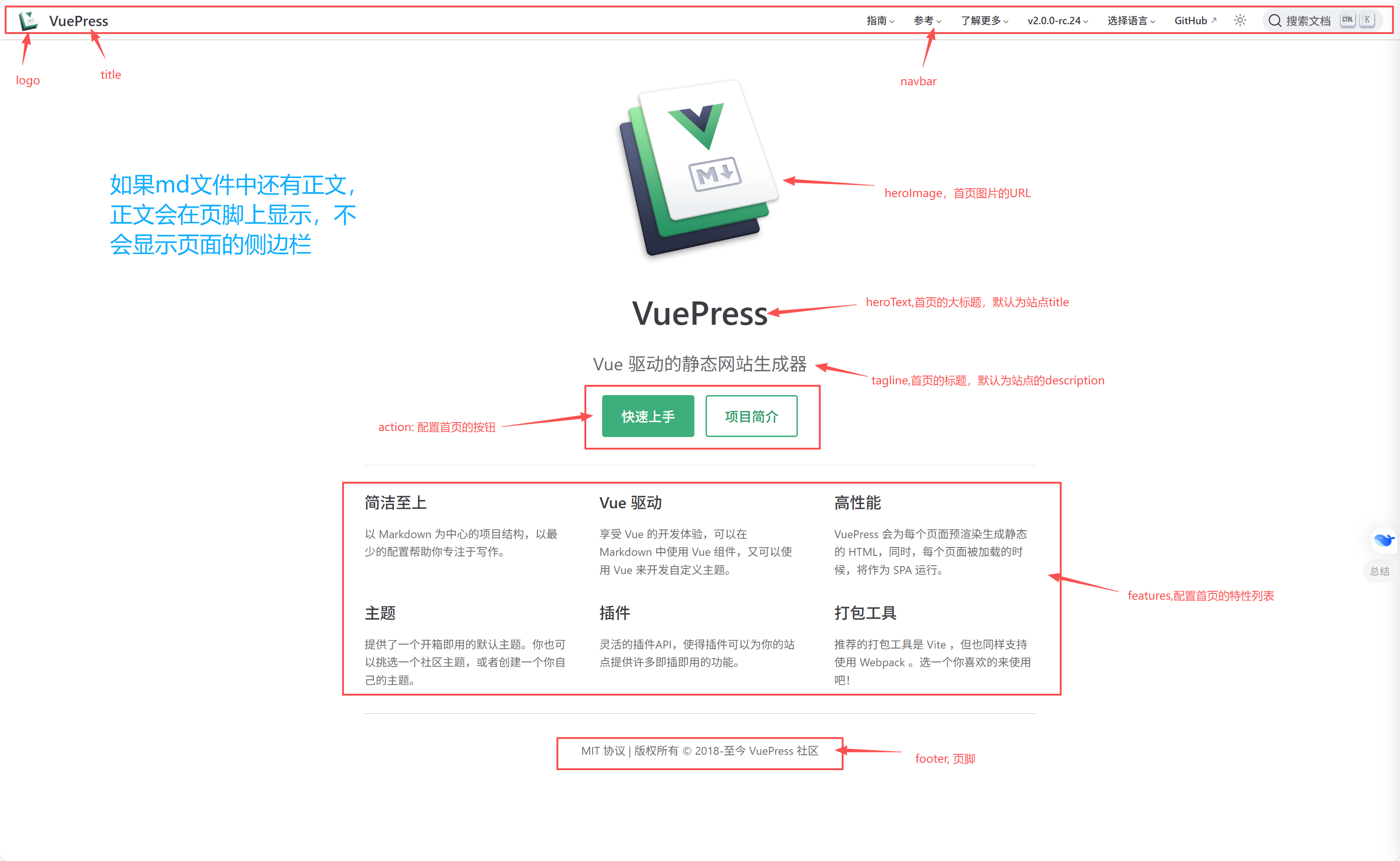
普通类型的页面,就是默认显示MD文件的内容,左侧是目录区,右侧是内容,最下一栏显示“上一页,下一页”。 首页类型的页面,不显示左侧的目录区,在内容之前,可以根据元数据区的设置,显示图片、标题、按钮等元素。
任一目录下的README.md是默认的页面,如果只指向目录,不写具体的文件名,就读README.md文件。
参阅:https://ecosystem.vuejs.press/zh/themes/default/frontmatter.html
对于首页:
| 项目 | 值 | 说明 |
|---|---|---|
| home | true/false | 如果是false,则是普通页面来处理 |
| navbar | true/false | 是否显示导航条 |
| heroImage | string | 首页图片的URL,如/images/hero.png |
| heroImageDark | string | 夜间模式下首页图片URL |
| heroHeight | number | 首页图片高度,默认280 |
| heroText | string/null | 首页大标题,默认为站点title |
| tagline | string/null | 首页标语,默认为站点description |
| action | Array<{text: string,link: string,type?: 'primary' | 'secondary'}> | 配置首页按钮 |
| features | Array<{title: string details: string}> | 配置首页特性列表 |
| footer | string | 首页的页脚 |
| footerHtml | boolean | 如果是true,上面的footer作为html代码处理 |
对于普通页:
| 项目 | 值 | 说明 |
|---|---|---|
| contributors | boolean | 是否显示本页创建者 |
| lastUpdated | boolean | 是否显示更新时间 |
| sidebar | false|SidebarOptions | 配置侧边栏 |
| sidebarDepth | number | 侧边栏深度 |
| prev | AutoLinkConfig|string|false | 上一页 |
| next | AutoLinkConfig|string|false | 下一页 |
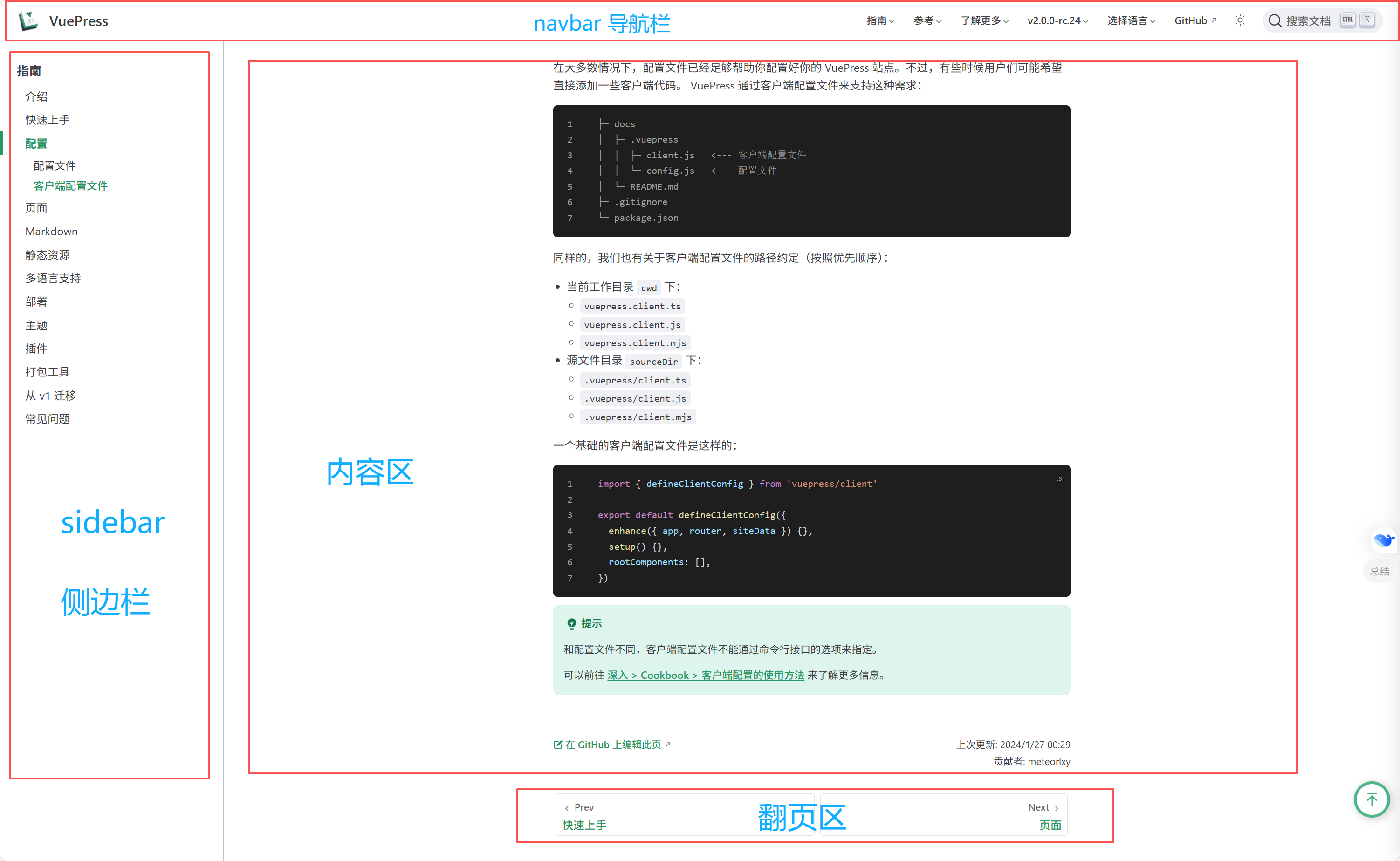 上面的4个区中,除内容区外,都可以关闭不显示。
现在我要首页显示一个封面图片,加上两个按钮,默认选择第一个,可以这样配置
---
home: True
navbar: true
title: 首页
heroImage: /images/xgxgc111.png
heroHeight: 200px
#heroText:
#tagline:
actions:
  - text: 快速上手
    link: /guide/getting-started.html
    type: primary

  - text: 项目简介
    link: /guide/introduction.html
    type: secondary

features:
  - title: 强大的功能
    details: 强大的APP功能,可以令用户一机在手,万事无忧。

  - title: 微服务驱动,高性能应用
    details: 多端一致,一处登录,处处使用。享受分布式体验,强劲性能,快速响应。

  - title: 多角色,多平台,多语言
    details: 多角色权限管理,满足不同用户的需求。多平台卓越体验。


footer: MIT 协议 | 版权所有 © 2025-至今 春申汇
---
增加插件-以mermaid为例
通过官方的VuePress 生态系统能找到mermaid的插件。
可以先配置插件,根据报错信息再安装插件 在config.js中
import { markdownChartPlugin } from '@vuepress/plugin-markdown-chart'

export default defineUserConfig({
  bundler: viteBundler(),
  theme: defaultTheme({ ...}),
  plugins: [
    markdownChartPlugin({
      //启用Mermaid
      mermaid: true,
    }),
  ],
但是一直报错无法运行。 查看当前的package.json内容能看到
"devDependencies": {
    "@vuepress/bundler-vite": "^2.0.0-rc.24",
    "@vuepress/theme-default": "^2.0.0-rc.112",
    "mermaid": "^11.10.1",
    "sass-embedded": "^1.91.0",
    "vuepress": "^2.0.0-rc.24"
  }
所以最终的原因是:
问题根源:

- 当前环境:Node.js v22.14.0,npm 10.9.2
- VuePress版本:2.0.0-rc.24
- @vuepress/theme-default版本:2.0.0-rc.112
- @vuepress/plugin-markdown-chart最低版本:2.0.0-rc.109
核心问题:

1. 1.
   版本不兼容 :@vuepress/plugin-markdown-chart@2.0.0-rc.109要求vuepress@2.0.0-rc.23,但当前安装的是2.0.0-rc.24
2. 2.
   依赖冲突 :theme-default是2.0.0-rc.112版本,与VuePress 2.0.0-rc.24存在peer dependency冲突
3. 3.
   包未安装 :@vuepress/plugin-markdown-chart包根本没有安装在node_modules中
多次安装失败 重新删除package-lock.json和node_modules目录, 从头复位package.json文件 然后再安装
npm i -D mermaid还是失败。安装成功,总是提示版本不兼容。
但是我加上VPN后,重复上面的操作,就成功了。
"devDependencies": {
  "@vuepress/bundler-vite": "^2.0.0-rc.24",
  "@vuepress/plugin-markdown-chart": "^2.0.0-rc.112",
  "@vuepress/theme-default": "^2.0.0-rc.112",
  "mermaid": "^11.10.1",
  "sass-embedded": "^1.91.0",
  "vuepress": "^2.0.0-rc.24"
}
我看上面的版本,基本上都正常了。
总结一下:先安装插件对应的功能包,再安装插件,然后在plugins区进行配置。注意版本兼容性问题,如果符合文档的要求,可以再考虑加上VPN再试一下。
npm i -D mermaid
npm i -D @vuepress/plugin-markdown-chart --save-dev
增加主题
我们可以在vuepress网站的导航栏里找到参考-生态系统里找到主题指南。 这里我选择使用Hope主题。 主题就是把一系列的插件整合,自动安装而已。你不想用主题,自己安装各个单独的插件也是可以的。
npm install vuepress-theme-hope@latest --save-dev然后在config.js中将默认主题替换成hopeTheme,修改import和theme两处即可。
启用主题中插件
启用mermaid
重新启动时,你能发现一个提示,说插件重复使用。这是因为我在上面已经安装过mermaid插件,而这个主题自带这个插件,所以会有这个提示。 我在config.js中,将
import { markdownChartPlugin } from '@vuepress/plugin-markdown-chart'和plugins区段的
markdownChartPlugin({ mermaid: true, }),直接删除就可以了。 但是重启后你发现原来能看到的mermaid图不能正常显示了,这是因为原来是在plugins段打开mermaid功能,现在改成在主题里打开了。 所以还需要在config.js中增加
export default defineUserConfig({
	theme: hopeTheme({
		markdown:{
			mermaid: true,
		}
	})
原来放在插件区里,现在放在主题的markdown区。
我们可以在Markdown 介绍 | vuepress-theme-hope用看到hope主题中支持的markdown插件列表。
增加一个本地搜索栏
npm i -D @vuepress/plugin-search@next然后在主题选项中配置plugins.search 因为上面mermaid是markdown的一个功能,配置markdown区,搜索栏是一个独立的插件,所以需要配在plugins区
export default defineUserConfig({
	theme: hopeTheme({
		markdown:{
			mermaid: true,
		},
		    // 插件配置
    plugins: {
      // 启用内置搜索
      search: {
        // 搜索热键
        hotKeys: ['s', '/'],
        // 最大建议数
        maxSuggestions: 10,
        // 排除首页
        isSearchable: (page) => page.path !== '/'
      }
    }
	})
客户端配置
config.js 是 VuePress 站点的核心配置文件,主要用于配置构建阶段和全局站点的选项。 client.js用于编写会在浏览器中运行的客户端代码。
VuePress 在构建过程中会首先处理 config.js 中的配置。生成静态页面后,在浏览器中加载并执行 client.js 中的代码,从而激活为一个真正的 Vue SPA(单页应用)。
其它事宜
Vuepress根据配置文件生成导航,不会自动检测文件是否存在